Switching from Windows to Mac takes a month, not a day
A new guide for 2026 details the steps to transfer files, rebuild workflows, and avoid costly errors during the move to macOS.
By Julian Schulz ·
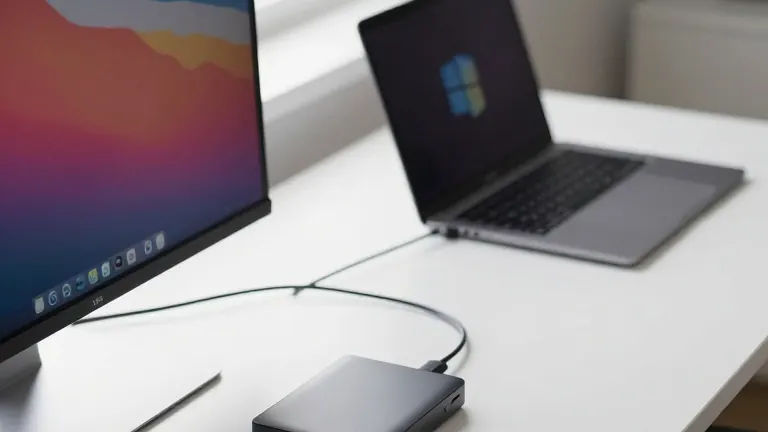
Apple users switching from Windows computers in 2026 face a transition that typically spans 30 days. While the initial setup can be completed in one day, adjusting to the new operating system requires several weeks. A new guide published by the Baltimore Chronicle outlines a structured approach to transferring documents and rebuilding work habits without losing critical data.
The process begins with a thorough inventory of the current Windows system. Users should review installed software and inspect specific folders, including Documents, Downloads, Pictures, and the Desktop. This step is essential because transferring files does not guarantee that the original applications will function on macOS. A separate list of programs required for banking, taxes, or work helps identify necessary replacements before purchasing new hardware.
Before moving any data, a complete and independent backup is required. The guide recommends using an external drive or a trusted cloud service. Users must verify that important files, such as financial spreadsheets, browser bookmarks, and archived emails, actually exist in the backup. Relying solely on a completed notification is a common error. The original Windows computer should remain intact until all migrated files have been tested on the new Mac.
Apple provides a free tool called Migration Assistant to transfer supported documents, photos, contacts, and settings. The software does not erase the Windows computer. Users must connect both devices to power, enable Wi-Fi and Bluetooth, and download the correct version of the tool from Apple. The transfer time depends on data volume and connection quality. A large photo library will take considerably longer to move than a collection of office documents.
The first week involves learning new keyboard shortcuts and navigation tools. The Command key replaces the Control key for many everyday tasks. Finder serves the role of File Explorer, while Spotlight is used to search for files and programs. Users must learn to distinguish between closing a window and quitting an application. The red window button often leaves the app running, while Command plus Q closes it completely. Right-clicking works with a standard mouse, but a two-finger click opens the contextual menu on a MacBook trackpad.
During the second week, the focus shifts to reinstalling essential applications and signing into accounts. Microsoft 365, Google Workspace, and Adobe Creative Cloud offer native macOS versions. Users should confirm that their subscriptions cover the new platform. For those using an iPhone, the Apple ecosystem allows for synchronization of photos, notes, and passwords through iCloud. AirDrop and Universal Clipboard facilitate file transfer and copy-paste functions between nearby Apple devices.
By the third week, normal work should feel more familiar. This is the appropriate time to strengthen security settings. Users should enable FileVault, configure automatic updates, and activate Find My Mac. Application permissions for camera, microphone, and location access must be reviewed. Setting up Time Machine with an external drive ensures that new backups are created and verified. The final week involves opening older documents to compare them with their Windows originals, checking spreadsheet formulas, and testing printers and external monitors.
The most common mistake is treating a successful file transfer as the end of the process. Functional testing is just as important as copying information. Users should retain access to their Windows computer if a critical application has no workable Mac equivalent. Apple silicon Macs do not support Boot Camp for direct Windows installation, so virtualization may be necessary for some professional software. A written record of unresolved problems helps track solutions by day 30.